Share

This article was reprinted (with permission) from Kyle Allwine’s LinkedIn account. Read his original post here, and connect with him at www.linkedin.com/in/kfallwine.
You’ve got your iced coffee, your favorite music playing, and a comfortable spot to design some graphics. You sit at Canva, Adobe Express, or another program you use, and… absolutely nothing happens.
Writer’s block can happen to designers too, and it causes a lot of self-doubt and stress.
It may be caused by a myriad of issues, but for me, it is typically because I am not a trained designer. I have learned the basic skills over time, I know when something looks right or not, but I am not an artist. When Canva and Adobe Express launched, I was hooked, because the ready-made templates gave me a launchpad of inspiration and a starting point. I could overcome my designer’s block.
Microsoft Designer, now in an invite/beta stage, is taking those platforms to the next level using AI.
Here are three great ways you can use this new tool to overcome that designer’s block.
Microsoft Designer can be used exactly like Canva and Adobe Express, but the integration with AI means that you never have to start from nothing again. Similar to ChatGPT and other AI tools, Microsoft Designer uses prompts.
An AI prompt is text or information you provide to the AI model to generate its output.
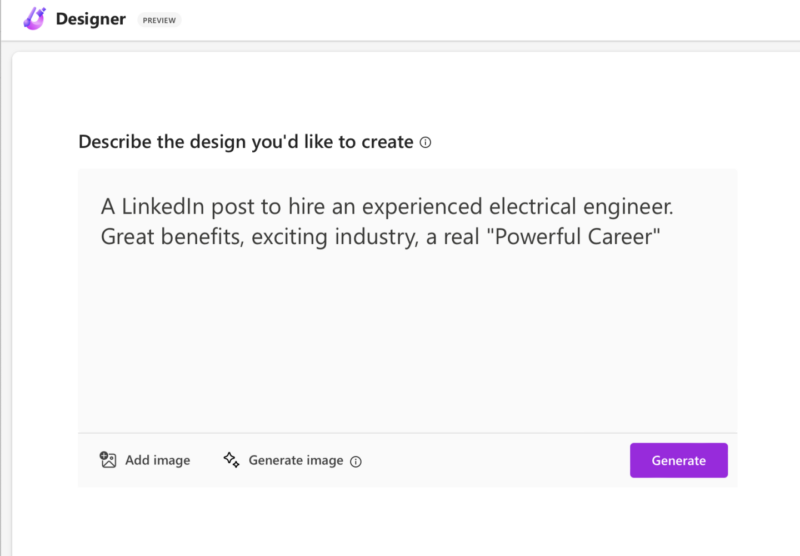
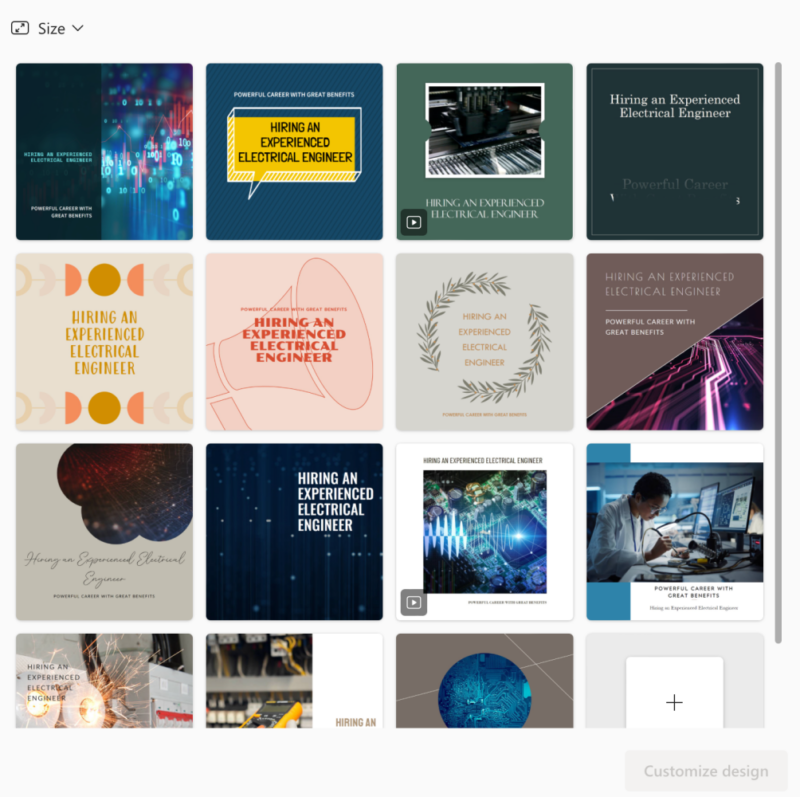
Now, am I 100% in love with any of these? No, but they are a few that are workable. From here, you can go in three different directions:
It is more fun if we do the next one so…
The Microsoft Designer platform uses DALL-E 2 by Open AI (the same folks who created ChatGPT), and it really shines. Under the prompt box for text, you can upload your own image, or let the AI make you an image, so if you want a lineworker as a superhero or a bucket truck in space or an energy-sucking HVAC unit, it will make that. In keeping with our hiring post theme, let’s go with the prompt: “Electrical engineer as pop art, neon.”
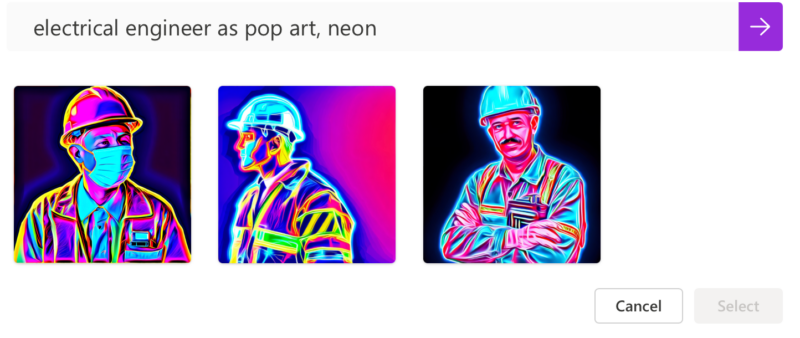
As the designs load, they give you helpful hints and tips on the prompts. Be aware that a lot of our industry’s technical terms will not work (e.g. lineworker).
You can always redo the prompt to get different images, or just reload the same prompt. You can also save these images to use in other places now. They are a unique design asset created for you. Once you find one that you like, you can insert it into the graphics.
For me, playing with AI-generated images helps create a theme, colors, and vibe for the graphic, so I use that to inform the new prompt: “A post to hire an electrical engineer. “Start your new career today!” with neon blues and greens.”
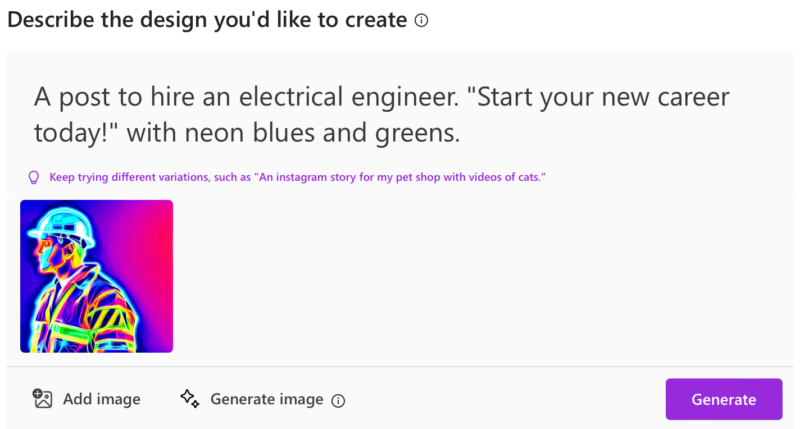
Here’s the results when I sorted by size:
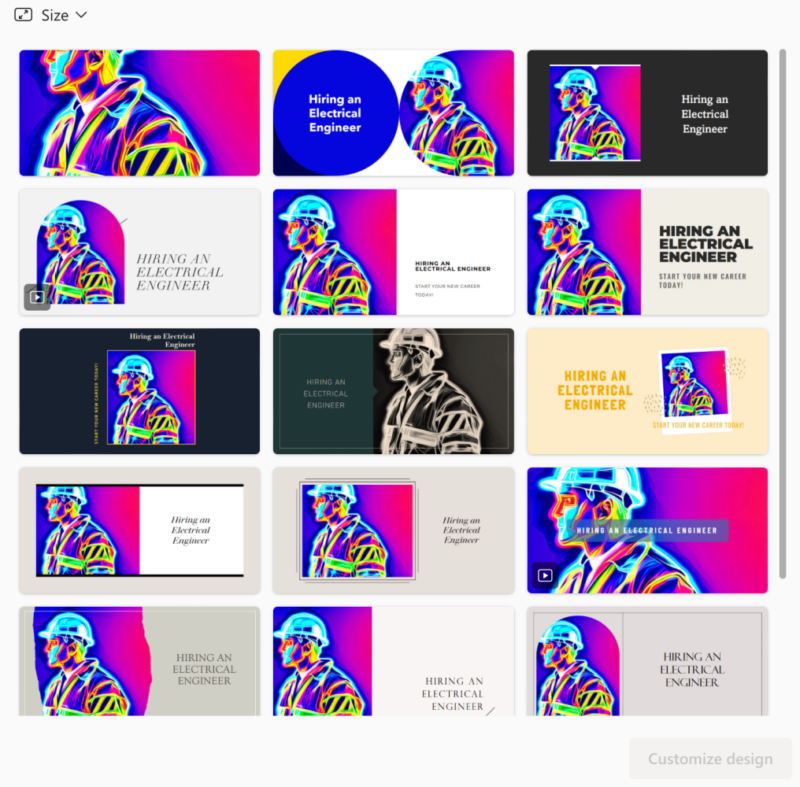
I don’t love all of these, but the top middle one is definitely workable. If you like one of the graphics, you can select it and customize it.
I would have never made any of these previously, but that is a good thing. We are competing with the world for the attention of our members, our prospective employees, and our community. Let me say that again for the people in the back:
We are competing with the world for the attention of our members, our prospective employees, and our community. As co-ops, we exist to serve our members, and they are a unique, diverse group of people. Our communications tactics need to match that.
If you get stuck in a creative rut, or you get designer’s block as I do, then maybe try this tool to get out of it.
ChatGPT, Bard and other artificial intelligence bots continue to make headlines. Hear what Utility Pioneers think of the new tools…
ChatGPT, Jasper and other writing bots are making headlines. How will artificial storytellers impact the perceived value of utility communicators?…
I started playing with ChatGPT when it broke into the public beta and was shocked by the headlines and click-bait…